Demo access
02 · ROSTERMonthly roster

By hand or fully automatic.

Plan the month shift by shift — with the schema, requests and rest periods in view. Or let Rostify calculate a finished roster that leaves no rules or requests open.

Manual planning

Every click, checked.

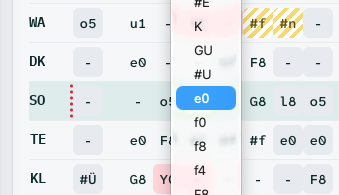
Manage Roster: dropdown with shift codes opened on a roster cell
FIG. 01 — Shift dropdown in the roster
01

One click. One dropdown.

Click a cell, a dropdown opens — choose a shift.
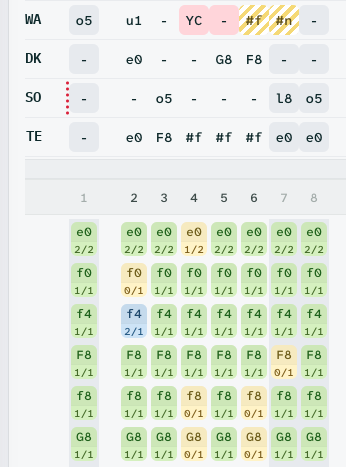
Roster rows above the coverage schema: covered 2/2 in green, missing 0/1 in yellow, too many 2/1 in blue
FIG. 02 — Schema · missing 0/1 · too many 2/1
02

Gaps and surpluses at a glance.

The schema shows you at once where shifts are still missing and where you have assigned too many.
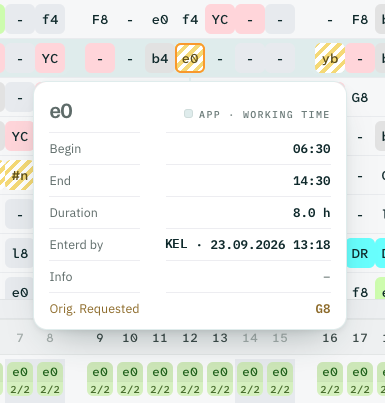
Tooltip on shift e0: begin, end, duration, entered by, originally requested G8
FIG. 03 — Tooltip · requested G8, entered e0
03

Every shift explains itself.

A tooltip shows you the details of every shift — and any discrepancy, for example a general request that was not met or a single request.
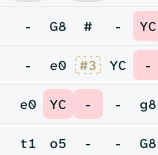
Ghost marker #3 of a deleted request in a roster cell
FIG. 04 — Ghost of a deleted request
04

Nothing disappears.

Delete a request entirely by mistake and even that does not stay hidden — a ghost points you to it.
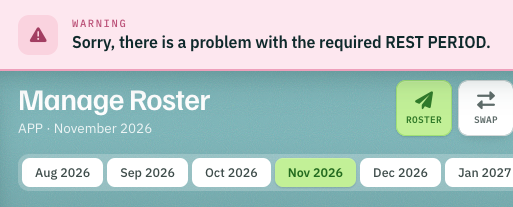
Warning in Manage Roster: problem with the required rest period
FIG. 05 — Warning · rest period
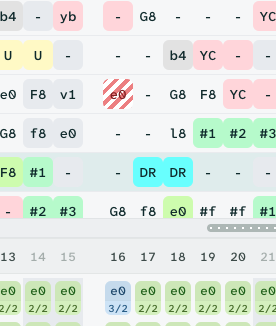
Roster section with a rest-time violation marked in red stripes
FIG. 06 — Rest-time violation in the roster
05

Strict violations cannot happen.

Rostify warns you more than once. The system follows the regulatory requirements — or you define your own fatigue parameters offline, company-wide.

Automatic planning

Two ways to a finished roster.

2min

Quick Roster

Ready in two minutes — a base for you to refine.

10min

Finished roster

A groundbreaking, finished roster that leaves no rules or requests open.

Result preview

Check first. Then apply.

Before anything is saved, the preview shows the key figures and every rule the new assignments touch.
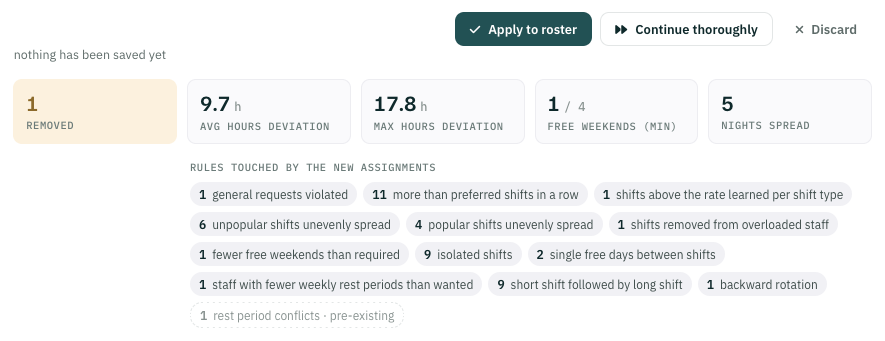
  1. 1Apply to roster takes the result into the roster.
  2. 2Continue thoroughly lets the calculation go on.
  3. 3Discard drops the result.
Autoplan result preview: buttons Apply to roster, Continue thoroughly and Discard; key figures removed, average and maximum hours deviation, free weekends, nights spread; list of rules touched by the new assignments
FIG. 07 — Autoplan result · nothing saved yetScreenshot

Within 10 minutes the system calculates the perfect roster — on 6 processor cores, with about 75 parameters defined offline.

6
processor cores
≈ 75
parameters, defined offline

On top, the robot looks for patterns in past rosters. It recognises which shifts individual staff like or avoid — and even keeps couples or car pools together, where a pattern is visible.
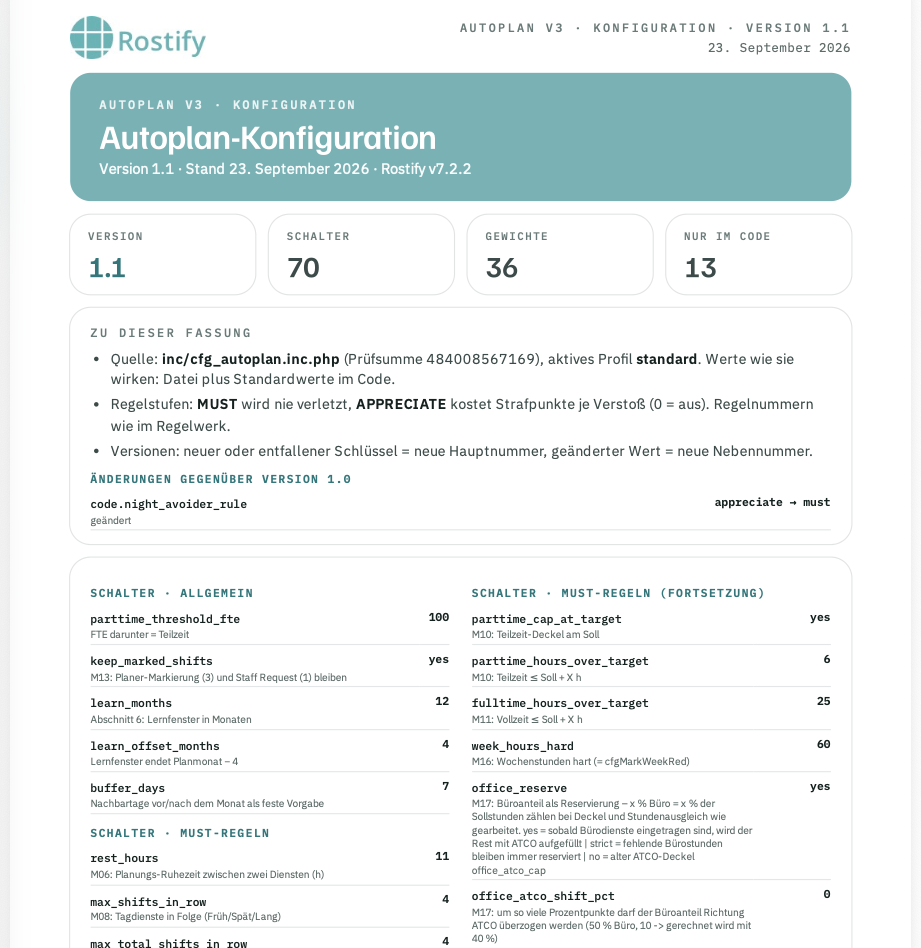
  • MUST parameters are kept strictly.
  • APPRECIATE parameters are weighted.
Autoplan configuration version 1.1: switches for general and MUST rules such as rest hours and shifts in a row
FIG. 08 — Autoplan configuration · MUST and APPRECIATEScreenshot

Not to forget

Rostify takes account of job sharers who work partly as ATCO and partly in the office.

In addition, two working-time models can be defined — for ANSPs whose collective agreement sets different working hours for ATCOs and office staff.

The result

  1. 01Days of work saved for your roster planner.
  2. 02No rule breaches in the roster — above all on fatigue.
  3. 03Highly satisfied staff.
Request demo access →